 Nullgen AI Blocker
BlogEducators
How to block AI apps on school iPads with the MDM you already have
Chromebooks and lab PCs have had prompt blocking for a while. The iPad cart has not. Nullgen’s app for iPhone and iPad blocks known AI apps and websites on every managed iPad, installs through Apple School Manager and your MDM with nothing for students to tap, and lets teachers approve exceptions themselves. Android tablets are next.
The Nullgen team
9 min read
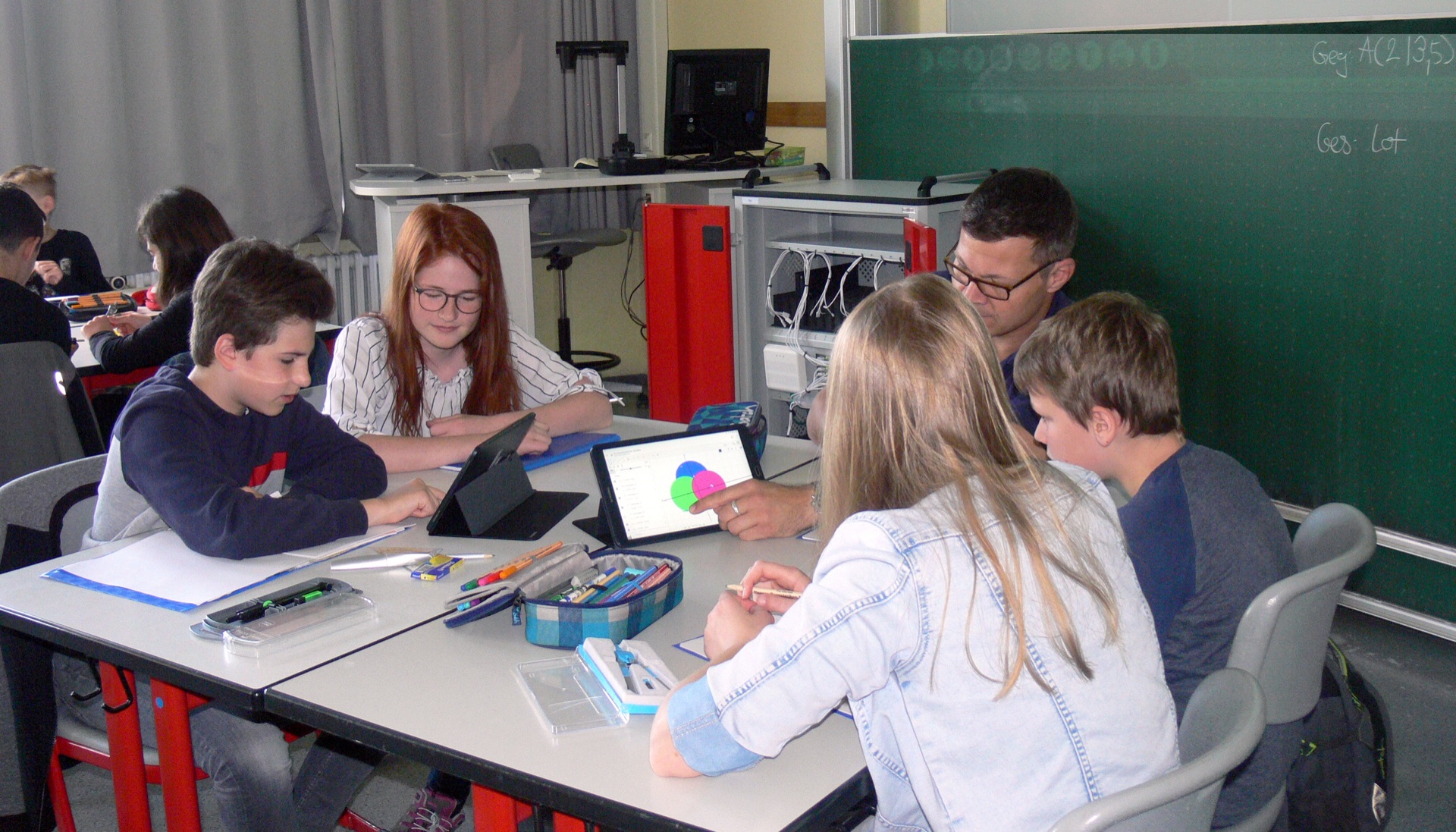
Ask any teacher where the AI shortcut lives now and the answer is the tablet. On a Chromebook or a lab PC, Nullgen’s extension stops typing and pasting into AI prompts, and the assignment gets done the slow way. An iPad cannot run a browser extension, and it does not need one: ChatGPT, Claude, Perplexity, and Gemini are each an app on the home screen, and Safari reaches the rest.
Nullgen AI Blocker for iPhone and iPad closes that gap on every iPad your school manages. It blocks known AI apps and websites on the device, it installs through Apple School Manager and your MDM with nothing for a student to tap or approve, and teachers can grant access to a specific tool for a specific time without a ticket to IT. Here is how it works, how to roll it out, and what it does not cover. Android is coming soon.
Why the iPad cart needs its own answer
Most school AI controls sit on the network or in the browser. The content filter covers the building’s Wi-Fi, and Nullgen’s extension covers Chrome on the Chromebooks. A 1:1 iPad goes home on the bus, joins the family Wi-Fi, and opens the ChatGPT app, and none of that touched a control. Even in the building, a native app talks straight to its own servers with no browser for a filter to inspect.
Detection after the fact does not help either. AI detectors flag honest students and miss careful ones, and a flagged essay is a conversation nobody wants to have. Removing the shortcut on the device is what changed things on the Chromebook, and it is what the app does on the iPad.
It goes home
A 1:1 iPad spends most of its life on networks your filter never sees. A block on the device travels with it.
Apps, not just pages
The ChatGPT and Claude apps do not use Safari, so a browser control never sees them. The app blocks the destination they talk to.
No detector to argue about
When the tool does not load, there is no essay to flag and no false positive to defend at a parent meeting.
What the app does on a managed iPad
Once protection is on, the iPad cannot reach known AI destinations. chatgpt.com does not load in Safari or Chrome, and the ChatGPT app cannot connect. The same is true for Claude, Perplexity, Grok, Copilot, and the 70+ other AI tools in the catalog, which the app refreshes on its own without an app update. There is nothing inside the app for a student to turn off.
Everything happens on the device. Nullgen has no student accounts, keeps no browsing history, and never sees what a student types; the app downloads the list of AI destinations and your policies and answers each lookup on the iPad. iOS shows the filter as a VPN configuration because that is how iOS lets an app filter, but nothing a student does is routed through Nullgen or anywhere else.
Roll it out with Apple School Manager and your MDM
The rollout is three items in your MDM, all generated on the Provisioning page of the Nullgen dashboard: the app, an app configuration that enrolls each iPad, and a configuration profile that turns protection on without a prompt. It works with Jamf Pro, Microsoft Intune, Iru (formerly Kandji), or any MDM that can deliver a managed app configuration.
- 1
Generate an enrollment token
Open Provisioning in the dashboard and choose the Mobile app tab. The token identifies your school and is built into every payload on the page. It is shown once, so save it in your MDM.
- 2
Assign the app in Apple School Manager
Add Nullgen AI Blocker under Apps and Books, assign licences to the iPads, and push it from your MDM as a required, managed app. iOS delivers managed app configuration only to apps the MDM installed.
- 3
Attach the app configuration
Choose your management tool on the Provisioning page and copy the property list into the app’s configuration. The identity fields use placeholders your MDM fills in for each student, so one policy covers the whole district and each iPad lands on the right person in the dashboard.
- 4
Push the always-on profile
Upload the generated VPN configuration profile as its own item. It installs the filter with no approval prompt and needs no supervision. On a Shared iPad it goes on the device channel, so the cart stays protected no matter which student signs in.
- 5
Turn off the AI built into iPadOS
Nullgen filters network destinations, so it cannot reach features built into the operating system. The Provisioning page lists a Restrictions payload that disables the Apple Intelligence features that generate text and images, and Private Browsing in Safari.
One launch of the app completes enrollment; with the profile in place, protection is already on when a student first opens it. Each iPad then appears on the Devices page assigned to its student, next to any Chromebook or laptop they use. Allow nullgen.ai and cdn.nullgen.ai on the school network; the Deployment for IT page has the full list.
Teachers approve; IT stays out of the loop
A block with no exit turns into a workaround, and in a school the exit has to be the teacher, not a help desk. When a class is allowed to use Perplexity for a research unit, the student requests it from the iPad, picks a duration, and adds a note. The teacher, set up as an approver in the dashboard, approves it in one tap; the tool unblocks on that iPad immediately and blocks itself again when the time is up.




An Approver role for teachers: they see and decide requests without administering students or devices.
Allow and deny policies per student or for the whole school, on iPads and Chromebooks alike.
Every approval has a duration and expires on its own, so a one-period exception is exactly one period.
iPads, Chromebooks, and lab PCs sit side by side on the Devices page, assigned to the students who use them.
What it does not block, and what to do about it
Nullgen blocks known AI apps and websites, and the list keeps growing. Some AI features live inside a larger app the iPad needs for other things, and blocking those would break search, mail, or messaging, so the app leaves them alone. Your MDM can remove those apps from student iPads entirely where the policy calls for it.
Gemini inside the Google app and Search
The dedicated Gemini website is blocked. The Gemini app and Gemini in Search share Google’s main websites, so blocking them would break Search.
Copilot inside Office, Bing, and Edge
The Copilot website is blocked; the version built into Microsoft apps is not.
Meta AI inside Instagram, WhatsApp, and Facebook
The Meta AI website is blocked; the assistant inside those apps is not.
Two more boundaries. The app protects iPads and iPhones your MDM manages; a student’s personal phone is out of scope, and parents who want the same block at home can use the Family plan. And Chromebooks are covered by the extension, not the app: the app is for iPad and iPhone today, with Android tablets coming soon.
What it costs a school
The app is included with the Education plan, which is priced by volume and billed once a year: $10 per seat per year for the first 100 seats, $7 from 101 to 500, and $5 from 501 up, with every seat billed at the rate for your total. You pay for the devices you enroll, not a headcount of every student. Every plan starts with a 30-day trial with no card, and purchase orders and district P-cards are accepted. See Education pricing.
Android tablets are next
The Android app will block the same catalog the same way, pushed through managed Google Play with a managed configuration, on the enrollment token you already have. Chromebooks stay covered by the extension in the meantime. Subscribe to the newsletter and we will let you know when it ships.
Key takeaways
The iPad is where a school’s AI controls stop working: it leaves the network, and native apps never touch the browser.
On managed iPads the app blocks the destination: known AI apps and websites do not load, and there is nothing for a student to turn off.
Deployment is three MDM items from the Provisioning page: the required app from Apple School Manager, the app configuration, and the always-on profile.
Teachers approve exceptions as approvers, for a period or a unit, and the block returns on its own.
AI inside apps the iPad needs for other things is not blocked; use MDM restrictions for those. Android is coming soon.
Frequently asked questions
Does it work on Shared iPad carts?
Yes. Blocking is per device, so once the profile is on the device channel the cart stays protected no matter which student signs in.
Can a student delete the app or turn it off?
The app is pushed as a required managed app, so it cannot be removed, and there is nothing inside it to turn protection off. Access to a specific tool for a set time is granted by a teacher or administrator from the dashboard.
Does it block the Gemini app?
The dedicated Gemini website is blocked. The Gemini app and Gemini in Search share Google’s main websites, so blocking them would break Search; remove the Gemini app with your MDM if the policy calls for it.
What does Nullgen see about students?
Nothing they type or browse. The app downloads the list of AI destinations and your policies and uploads nothing about which sites or apps were used. Nullgen has no student accounts and keeps no browsing history.
What about Chromebooks?
Chromebooks and lab PCs use the browser extension, which blocks the prompt itself and deploys through Google Workspace, Jamf, or Intune. The app is for iPad and iPhone; both link to the same dashboard.
Can we cover students’ personal phones?
Only devices your MDM manages are in scope for the school. Parents can put the same block on a personal phone with the Family plan.
Further reading
Protect the iPad cart before the next unit
Start a 30-day Education trial with no card, generate an enrollment token, and push the app to one cart. Chromebooks keep the free extension in the meantime.