 Nullgen AI Blocker
BlogProduct update
Block AI apps on Mac: the Nullgen desktop agent for macOS is here
The browser was covered, then the phone. Now the whole Mac is too. The new Nullgen desktop agent stops known AI apps and websites from loading anywhere on macOS, links to the same dashboard as the extension and the mobile app, and has no Quit button.
The Nullgen team
8 min read
The browser extension stops AI prompts inside Chrome, Edge, Firefox, and Safari. But a Mac is more than its browsers. ChatGPT, Claude, and Perplexity all ship desktop apps, a second browser without the extension is one download away, and AI keeps turning up in tools that never open a browser tab at all.
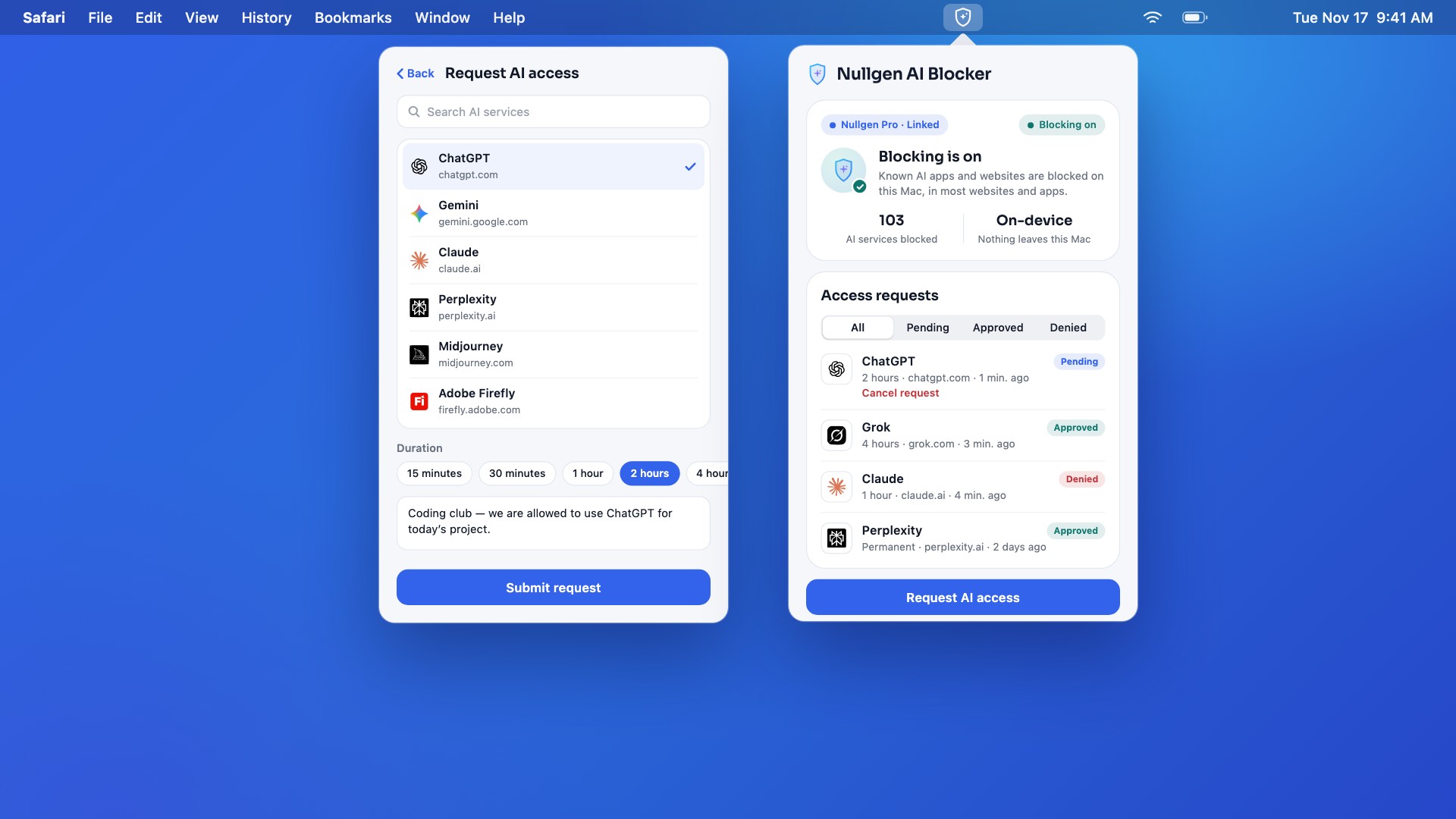
Today that gap closes on the Mac. The Nullgen desktop agent for macOS is available now. It blocks known AI apps and websites across the whole computer, links to the same Pro dashboard as the extension and the mobile app, and has no Quit button. Here is what it does, how it works, and what it does not do.
What the agent does
In the browser, Nullgen blocks the prompt: the extension recognizes AI chat boxes and stops typing and pasting into them while the rest of the site keeps working. Outside the browser there is no prompt box to hook, so the agent takes the approach the mobile app takes on a phone. It stops the Mac from reaching known AI destinations at all.
The result is easy to see. Open the ChatGPT app and it cannot connect. Open claude.ai in a browser that does not have the extension and the page does not load. The same goes for Perplexity, Grok, Copilot, and the 100+ other AI tools on the list, in every browser on the Mac and in the apps themselves.
What gets blocked
The agent works from the same catalog of AI destinations as the mobile app and the extension’s allow and deny policies. Three things follow from that.
Desktop AI apps
ChatGPT for Mac, Claude, and other dedicated apps talk to the same destinations as their websites, so they stop working too.
AI websites in any browser
Safari, Chrome, Edge, Firefox, and anything else installed, including browsers where the extension was never added.
New tools as they appear
The agent refreshes the list on its own. When a new assistant is added to the catalog, every Mac picks it up without an update.
Setting it up
Setup takes a few minutes, and the person using the Mac never has to open the agent again afterward.
- 1
Install the agent
Download Nullgen Desktop Agent from nullgen.ai, open the disk image, and drag the app to Applications. When you open it, a shield appears in the menu bar.
- 2
Link it to your account
The agent shows a 6-digit code. Open nullgen.ai/link on any device, sign in to your Pro account, enter the code, and assign the Mac to a person.
- 3
Turn on protection
Click Turn on protection, allow Nullgen’s network extension in System Settings, and allow the VPN configuration when macOS asks. Known AI apps and sites stop loading immediately.
From that point the Mac looks after itself. The agent starts at login for every account on the computer, refreshes the catalog and your policies on its own, and keeps itself up to date.
No Quit button, and access when you say so
The design goal is the same as the extension’s and the mobile app’s: remove the shortcut without surveillance. Nothing the person browses or types is recorded or sent anywhere. What you get instead is a block that stays put, and control over the exceptions.
No Quit button and no off switch. The agent starts at login for every account on the Mac and starts again if it stops.
Uninstalling takes an administrator password, so a child on a standard account cannot remove it.
Access requests from the menu bar: the person picks the tool and a duration, adds a note, and you approve or deny from the dashboard.
Approvals arrive live and expire on their own, so a one-hour exception is exactly one hour.
The Mac appears in the same dashboard as every browser and phone, assigned to the same person.
For schools and IT: deploy it with your MDM
Nobody wants to walk a 6-digit code around a building. Dashboard → Provisioning → Desktop agent has what an MDM needs: two configuration profiles and an installer package, with steps for Jamf Pro, Iru (Kandji), and Microsoft Intune, and a generic path for any other MDM.
The system profile approves the agent’s network extension and installs its VPN configuration ahead of time.
The enrollment settings carry your organization’s token and each person’s name and email, so every Mac enrolls itself to the right managed user.
Updates arrive through your MDM, on your schedule, as a signed and notarized package.
Removal is one script and the two profiles, run from the same console.
The same enrollment token covers browsers, phones, and Macs, so nothing has to be re-issued.
What it does not block (yet)
Honesty is the reason people trust a blocker, so here is the limit. Some AI features live inside a product the Mac needs for other work. Blocking those would break search, documents, or design tools, so the agent leaves them alone.
Gemini inside Google Search and Workspace
The dedicated Gemini website is blocked; the assistant inside Google Search and Workspace is not.
Copilot inside Office, Bing, and Edge
The Copilot website is blocked; the version built into Microsoft apps is not.
Firefly inside Creative Cloud
The Firefly website is blocked; the generative features inside Creative Cloud apps are not.
We are constantly expanding the list of AI tools the agent blocks, and dedicated apps on their own domains are expected to fail the moment protection is on. For AI built into the browser itself, the browser policies from Family Enforcement or Provisioning can switch it off. To keep an app off a Mac entirely, use Screen Time at home, or your MDM at school and at work.
Part of one suite
The desktop agent is the third piece of the AI blocker suite. The free browser extension covers Chrome, Edge, Firefox, and Safari on any computer. The mobile app covers iPhone, iPad, and Android. The desktop agent now covers the whole Mac, and a Windows agent is in development.
Everything links to one Pro account. Family is one flat rate for the whole household, and Education and Enterprise plans add zero-touch provisioning, policies per person, and approver routing. See the plans or read how the desktop agent works.
Key takeaways
The Nullgen desktop agent for macOS is available now and is included with every Pro plan.
Outside the browser the agent blocks the destination, not the prompt: known AI apps and websites simply do not load.
Blocking happens on the Mac. Nothing you browse is sent to Nullgen, and the VPN configuration is only how macOS lets an app filter.
No Quit button, an administrator password to uninstall, and access requests you approve for a set time from the dashboard.
Schools and IT deploy it with Jamf Pro, Iru (Kandji), Intune, or another MDM from Dashboard → Provisioning.
AI inside products the Mac needs for other work is not blocked; browser policies, Screen Time, or MDM handle those.
Frequently asked questions
Is it a VPN?
macOS lists it under VPN because that is the mechanism macOS offers for filtering. It does not route your traffic anywhere. Blocking decisions happen on the Mac, and nothing you browse leaves it.
Which Macs does it run on?
Any Mac running macOS 14 Sonoma or later.
Can my kid quit or uninstall it?
There is no Quit button, and the agent starts at login for every account on the Mac. Uninstalling it takes an administrator password, so give children a standard account rather than an administrator one.
Do I still need the browser extension?
Yes, keep both. The extension blocks the prompt inside the browser while the rest of a site stays usable, and it catches AI tools that are not on the list yet. The agent covers the apps and browsers the extension cannot reach.
Do I need a Pro plan?
Yes. The agent is included with Family, Education, and Enterprise. The browser extension stays free on its own.
How do I remove it?
Click the Nullgen shield in the menu bar, choose Uninstall Nullgen…, and enter an administrator’s name and password. That removes the agent and its filter for every account on the Mac. Dragging the app to the Trash does not work while it is running.
What about Windows?
A Windows agent is in development. Until it ships, the browser extension covers Chrome, Edge, and Firefox on Windows, and Pro can pin it so it cannot be removed.
Further reading
Install Nullgen on their Mac today
Download the agent, link it to your Pro account with a 6-digit code, and turn on protection. Not on Pro yet? Every plan starts with a free trial.