 Nullgen AI Blocker
BlogProduct update
Block AI apps on iPhone and iPad: Nullgen AI Blocker is now on the App Store
The homework computer has been protected for a while. Now the phone can be too. The new Nullgen app stops known AI apps and websites from loading on iPhone and iPad, links to the same dashboard as the extension, and allows for AI access requests.
The Nullgen team
7 min read
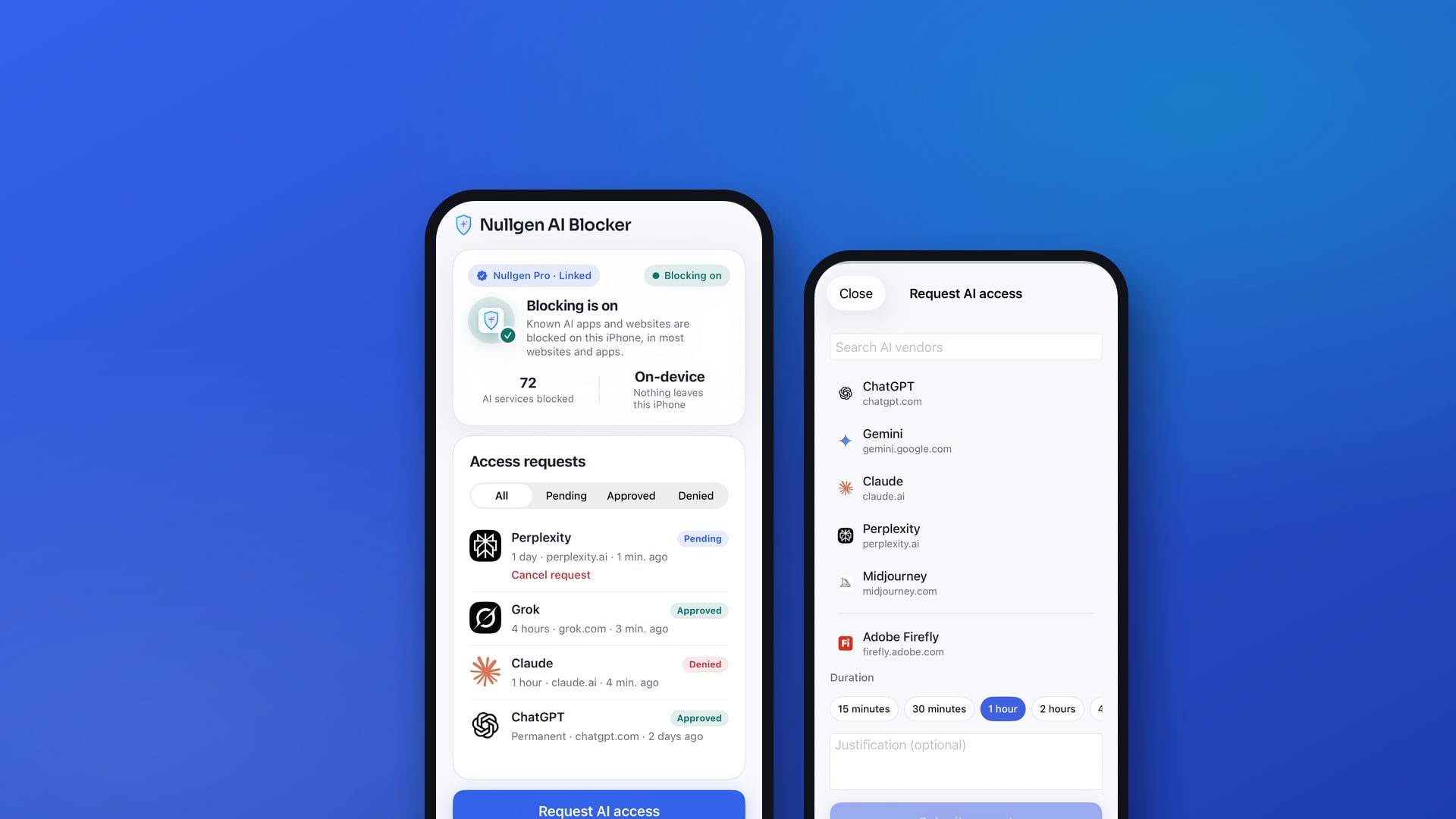
Every parent, teacher, and IT lead who has set up Nullgen has asked the same question afterward: what about the phone? The browser extension closes the shortcut on the computer, but a phone in a pocket has every AI assistant as an app, one tap away.
Today that gap closes. Nullgen AI Blocker for iPhone and iPad is available on the App Store. It blocks known AI apps and websites on the device, it links to the same Pro dashboard as the extension, and once protection is on there is nothing inside the app to turn it off. Here is what it does, how it works, and what it does not do.
What the app does
On a computer, Nullgen blocks the prompt: the extension recognizes AI chat boxes and stops typing and pasting into them while the rest of the site keeps working. A phone cannot run a browser extension, so the app takes a different approach. It stops the device from reaching known AI destinations at all.
The result is simpler than it sounds. Open ChatGPT in Safari and the page does not load. Open the ChatGPT app and it cannot connect. The same goes for Claude, Perplexity, Grok, Copilot, and the 70+ other AI tools on the list, in every browser on the device and in the apps themselves.
What gets blocked
The app works from the same catalog of AI destinations that powers the extension’s allow and deny policies. Three things follow from that.
AI websites in any browser
Safari, Chrome, Firefox, and anything else installed. The block does not depend on which browser is open.
Standalone AI apps
Dedicated apps such as ChatGPT, Claude, and Perplexity talk to the same destinations as their websites, so they stop working too.
New tools as they appear
The app refreshes the list on its own. When a new assistant is added to the catalog, every phone picks it up without an app update.
Setting it up
Setup takes a couple of minutes and does not require touching the phone again afterward.
- 1
Install the app
Download Nullgen AI Blocker from the App Store on the iPhone or iPad you want covered.
- 2
Link it to your account
The app shows a 6-digit code. Open nullgen.ai/link on your own device, sign in to your Pro account, enter the code, and assign the phone to a person. Families can also subscribe to Family right in the app.
- 3
Turn on protection
Tap Enable protection and allow the configuration when iOS asks. Known AI apps and sites stop loading immediately.
From that point the phone keeps itself up to date. It refreshes the catalog and your policies on its own, so the person using it never has to open the app again.
No off switch, and access when you say so
The design goal was the same as the extension’s: remove the shortcut without surveillance. Nothing the person browses or types is recorded or sent anywhere. What you get instead is control over the exceptions.



No off switch inside the app. Once protection is on, it stays on.
Access requests from the phone: the person picks the tool and a duration, adds a note, and you approve or deny from the dashboard.
Approvals arrive live and expire on their own, so a one-hour exception is exactly one hour.
The phone appears in the same dashboard as every computer, assigned to the same person.
What it does not block (yet)
Honesty is the reason people trust a blocker, so here is the limit. Some AI features live inside a larger app that the phone needs for other things. Blocking those would break search, maps, or messaging, so the app leaves them alone.
Gemini inside the Google app and Search
The dedicated Gemini website is blocked; the assistant inside Google Search and the Google app is not.
Copilot inside Office, Bing, and Edge
The Copilot website is blocked; the version built into Microsoft apps is not.
Meta AI inside Instagram, WhatsApp, and Facebook
The Meta AI website is blocked; the assistant inside those apps is not.
We are constantly expanding the list of AI tools the app blocks, and dedicated apps on their own domains are expected to fail the moment protection is on. To keep the exceptions above off a phone entirely, use the parental controls you already have. Screen Time on iPhone can limit or remove individual apps, and Family Link does the same on Android. Schools and companies use their MDM for the same job.
Part of one suite
The iOS app is the second piece of what is now a full AI blocker suite. The free browser extension covers Chrome, Edge, Firefox, and Safari on any computer. The mobile app covers iPhone and iPad today, with Android coming soon. Desktop agents for macOS and Windows, which will block AI apps across the whole computer the way the mobile app does on a phone, are coming soon as well.
Everything links to one Pro account. Family is one flat rate for the whole household, and Education and Enterprise plans add zero-touch provisioning for computers, policies per person, and approver routing. See the plans or read what is coming for desktop.
Key takeaways
Nullgen AI Blocker for iPhone and iPad is on the App Store now and is included with every Pro plan.
On a phone the app blocks the destination, not the prompt: known AI apps and websites simply do not load.
Blocking happens on the device. Nothing you browse is sent to Nullgen, and the VPN prompt is only how iOS lets an app filter.
No off switch inside the app, with access requests you approve for a set time from the dashboard.
AI inside apps the phone needs for other things is not blocked; Screen Time, Family Link, or MDM handle those.
Frequently asked questions
Is it a VPN?
iOS lists it under VPN because that is the mechanism iOS offers for filtering. It does not route your traffic anywhere. Blocking decisions happen on the phone, and nothing you browse leaves it.
Does it work on iPad?
Yes. The app supports iPhone and iPad running iOS 18 or later.
Can my kid turn it off?
There is nothing inside the app to turn it off. Access to a specific tool for a set time is granted by an approver from the dashboard, and the block returns on its own when the time is up.
Do I need a Pro plan?
Yes. The app is included with Family, Education, and Enterprise. The browser extension stays free on its own.
What about Android?
An Android app that blocks the same list of AI apps and sites is coming soon. Subscribe to the newsletter and we will let you know when it ships.
Further reading
Install Nullgen on their phone today
Download the app from the App Store, link it to your Pro account in one step, and turn on protection with a single tap. Not on Pro yet? Every plan starts with a free trial.